ChatGPT · Claude · Gemini · Copilot
Use AI at work. Client data stays with you.
Do Not Feed AI replaces client data, PESEL and NIP numbers (Polish national ID and tax ID) and the data in files with realistic substitutes before a message reaches an AI chat. The reply comes back with the real values. Built for teams that handle client data covered by the GDPR and professional secrecy.
Do Not Feed AI works locally. It does not send data to the vendor, collect statistics or track user activity. It needs no account and no server connection to verify the license.
Already have a license? Download the program: Windows · macOS
- Works in
 Chrome
 Edge(Windows)
 Brave
Brave Firefox
- Masks in
 ChatGPT
 Claude
 Gemini
 Copilot
- first name and surname
- PESEL (national ID)
- NIP (tax ID)
- REGON (business ID)
- IBAN
- ID card no.
- payment card
- phone
- address
- postal code and city
- company
- passwords and tokens
- API keys
- hosts and IP addresses
- logins
- custom phrases
- xlsx, docx, csv, txt files
How it works
You type as usual. The AI receives replacements.
- Before sendingThe program on your computer detects personal data, and the extension replaces it in the chat field. You can turn on a preview with a list of what was found.
- Replacements look believableInstead of
[PERSON_1]the model gets "Barbara Zalewska" and a Polish national ID number (PESEL) with a valid checksum, so it does not "correct" the data. - Originals come back on screenThe model's reply is restored on the fly, inflected surnames included. The map of originals stays on your computer.
Detection is rule-based and can miss something, so you can turn on a preview before sending.
Pseudonymization, not anonymization. The program swaps data for replacements and keeps the map of originals with you, so the reply can come back with the real values. That is pseudonymization in the GDPR sense (reversible PII redaction): the data can be restored, so it is still personal data. It reduces the data that reaches the chat provider, but it does not replace the controller's other obligations.
FilesA spreadsheet with 10,000 clients in a second and a half.
Drop an xlsx, docx, csv or txt file into the chat as usual. The extension holds the upload, the program masks the data in the file's content on your computer, and an _anon version goes to the chat. From Excel and Word files the chat gets a simplified copy with values and text only: formula results instead of formulas, and no formatting, charts, images or macros. Your original stays with you, unchanged.
- Excelsheets, values only
- Wordparagraphs, tables, headers and footers
- CSVsemicolon, comma or tab
- Texttxt, md, log
- PDF, imagesblocked in the chat, from the program menu: see below
- Preview before sending: a list of detected values with counters; anything you uncheck stays in the file as is.
- Consistency: "Jan Kowalski" in a spreadsheet and in the chat of the same conversation gets the same replacement.
- Formats unsupported in the chat (pdf, images) are blocked by default, so they don't reach the chat unmasked. You can prepare them in the program menu (section below).
For the userIt doesn't change the way you work.
A small icon in the bottom right corner of the chat page shows how much data was detected in what you type. Enter works as always. The extension panel is a few settings and counters, in Polish or English.
- active
- 33 items detected
- masking
- off
- !no protection
- The color tells you the state of protection, and the tooltip on hover gives the details.
- A click opens the menu upward: detected data grouped by type, adding a custom phrase, the text that will go to the AI, the event history and toggles. A second click closes it.
- Preview mode: a list with checkboxes before every send.
- Replies: restore right away, or see the AI's version first.
- When the program is missing or not responding, the icon turns red and says so plainly, and sending without masking takes your decision.
ProgramOutside the browser too: clipboard and files from the menu.
In a code editor, a terminal, a document or any other program, copy the text, press a shortcut, and the clipboard now holds the same text with replacements. You anonymize files from the program's menu icon. This is not an extension inside the editor: the program reads the clipboard only when you press the shortcut or pick the command in the menu. Both features need a Pro or Business license.
- Excelvalues only
- Wordtext only
- CSV and textcsv, txt, md, log
- PDF with textresult: docx or txt
- Images jpg, pngmetadata only
- Clipboard shortcuts: Windows
Ctrl+Win+A(Anonymize) andCtrl+Win+R(Restore), macOSCtrl+Option+AandCtrl+Option+R. You copy the text, the shortcut turns the clipboard into text with replacements, you paste it into the AI, then you copy the reply and restore it with the second shortcut. - The shortcuts are off by default: you turn them on in the program's menu icon, and the program records that in its log. The same commands are in the menu and work even when the shortcuts are off.
- File from the menu: "Anonymize file..." and "Restore file...". Next to the original a new file appears with a neutral name ending in
_anon, and the original stays unchanged. The map of originals is stored encrypted on your computer and is deleted after 30 days. - A PDF with a text layer becomes a docx or txt, without page layout, images or hyperlinks; scans without text are rejected. From jpg and png images we remove only the metadata (location, device, author): the content of the image is not masked.
- On Windows the program has a tray icon that you start from the "Do Not Feed AI" shortcut in the Start menu (it does not start by itself; you can turn on autostart in its menu). On macOS it lives in the menu bar.
- Honestly about the clipboard: the system clipboard history and clipboard managers may keep the original that was copied before you used the shortcut. Turn them off while you work with client data.
Who it's for
See it in your own line of work.
Five short stories from everyday work with AI chats, including so-called shadow AI: using AI outside the rules a company has set. Pick the one closest to yours.
These are stories we made, not customer testimonials. Each is a one-minute film with a voice-over and English captions: the day without the extension, then the same day with it.
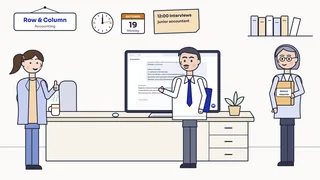
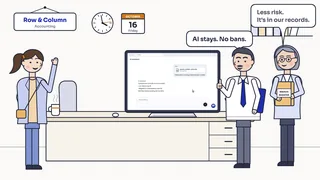 Accounting firmFriday, 3:40 pm - payroll
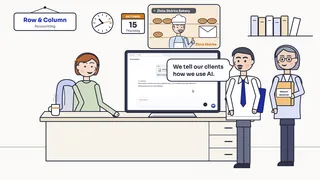 AccountingThursday, 10:15 am - the call to the client
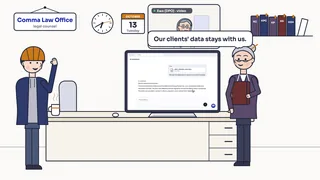 Law firmTuesday, 6:20 pm - the template from the last case
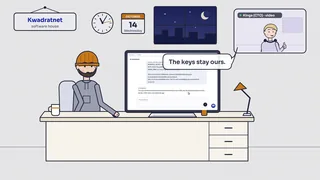 ITWednesday, 10:47 pm - the keys
 HRMonday, 8:30 am - three CVs
Voice-over text: Friday, 3:40 pm
Friday, three-forty p.m. To finish payroll before the weekend, Alex drops the file into a personal AI chat. An assessment, a report, a talk with the staff. And the weekend? Gone. Rewind. Now with the extension. It stops the file, and the program on Alex's computer lists what it found. One click, and the chat gets a copy with realistic replacements. The reply has the real names. Same Friday. This time, the weekend starts. Do Not Feed AI. Your clients' data stays with you.
Voice-over text: Thursday, 10:15 am - The call to the client
Thursday, ten-fifteen a.m. Kate, an accountant, handles Mr. Henry's bakery. She sends its accounting spreadsheet to an AI chat. Take two. Now with the extension. Same spreadsheet, same move. Amounts and dates stay. Names, national ID numbers, accounts and tax IDs reach the chat as replacements. The reply has the real data. Same Thursday. This time, the call ends in thanks. Do Not Feed AI. Your clients' data stays with you.
Voice-over text: Tuesday, 6:20 pm - The template from the last case
Tuesday, six-twenty p.m. Jake, a trainee, finishes a claim from an old template and sends it to an AI chat. The evening? Gone. Take two. Now with the extension. Same claim, same move. The program lists both clients' data, comment included. The chat gets a copy with replacements. The reply has the real data. Same Tuesday. This time, Jake leaves on time. Do Not Feed AI. Your clients' data stays with you.
Voice-over text: Wednesday, 10:47 pm - The keys
Wednesday, ten-forty-seven p.m. Chasing a bug, Matt pastes his config and log into an AI chat. Database password, cloud keys, payment keys: everything gets replaced. Until three in the morning. Take two. Now with the extension. Same text, same paste. The menu previews the swap. Secrets get stand-ins of the same shape. The reply has the real names. Same Wednesday. This time, Matt gets some sleep. Do Not Feed AI. Your secrets stay with you.
Voice-over text: Monday, 8:30 am - Three CVs
Monday, eight-thirty a.m. Mark, the boss, pastes three CVs from his email into an AI chat. Not a crisis. Still a problem. Take two. Now with the extension. Same rush, same paste. The menu previews the swap. The chat gets stand-ins for their details. The questions have the real names. Same Monday. This time, Mark is on time. Do Not Feed AI. Your data stays with you.
Download and start
Three steps: download, install, load the license.
Latest release: program 0.4.0, extension 0.3.43 · new
- 01 · DOWNLOAD
Windows installer
One file with the program, Windows 10 and 11. Signed: publisher Sebastian Obara It&Consulting.
Download for Windows (.exe)If Windows shows the blue SmartScreen window: More info, then Run anyway (a new program is still building its reputation).
- 02 · INSTALL
Program and extension
Run the installer (it needs no administrator rights), then add the extension from the store: open it in Chrome or Edge and click Add to Chrome.
Edge opens the same link and may ask for permission to use extensions from other stores: confirm it. Firefox: Add to Firefox, then Add (the extension comes from the Mozilla store and updates itself). Without the store: download the .xpi file. At the end of the installer the "Last step" page opens.
- 03 · LICENSE
Load the license file
In the extension panel, in the License section, choose the
No file yet? Request a trial license.licfile we sent you. Without a license protection is off, and the icon in the chat says so plainly.

- 01 · DOWNLOAD
macOS installer
A .pkg file with the program (Apple Silicon and Intel). Signed with a Developer ID and notarized by Apple.
Download for macOS (.pkg) - 02 · INSTALL
Program and extension
Open the .pkg (it asks for an administrator password), then add the extension from the store: open it in Chrome and click Add to Chrome.
Firefox: Add to Firefox, then Add (the extension comes from the Mozilla store and updates itself). Without the store: download the .xpi file. At the end quit the browser completely (Cmd+Q) and start it again.
- 03 · LICENSE
Load the license file
Click the Do Not Feed AI icon in the menu bar (next to the clock) and choose Load license…, pointing to the
No file yet? Request a trial license.licfile we sent you.
Requirements and supported browsers
- Windows 10 and 11 (x64, also Windows 11 on ARM): Chrome, Edge and Firefox.
- macOS 14 or newer: Chrome and Firefox. Edge on macOS is not supported.
- You need both parts: the program detects and replaces the data, and the extension passes it what you send to the chat. Without the program the extension does not mask data. The program runs while the browser is open.
Manual install (for IT)
A fallback for company networks that block the store, offline installs and deployments by the IT department. You point the browser to the extension by hand, once.
- Windows: open
chrome://extensions(in Edgeedge://extensions), turn on Developer mode, click Load unpacked and choose the folder%LOCALAPPDATA%\Programs\donotfeedai\wtyczka-chrome. - macOS (Chrome): download the Chrome extension (.zip), unzip it to a permanent location, in
chrome://extensionsturn on Developer mode and choose Load unpacked. Do not move the folder after loading it. - Firefox (Windows and macOS): the extension page in the Mozilla store, Add to Firefox, Add. The extension stays installed for good and updates itself. The .xpi file is only for manual installs or deployments.
- Check (any route): click the extension icon; the panel should show "Program: connected".
MSI installer for IT departments
Alongside the installer for a single person there is a file, donotfeedai-windows.msi, for company deployments through Group Policy (GPO), Intune or SCCM. The contents are the same as in the regular installer, and the install can be per computer (for all users) or per user.
- It registers the program in Chrome, Edge and Firefox, and puts down the unpacked extension and the tray app (a Start menu shortcut).
- It does not set up autostart for the app and does not launch it after installation; the user or an administrator turns autostart on.
- In managed browsers, roll out the extension with a browser policy (in Chrome
ExtensionInstallForcelist) and place the license file separately on each workstation. - Parameters, step-by-step deployment and notes for IT: description in the download repository.
How to check the signature and checksums
- Windows: right-click the file, Properties, Digital Signatures. Publisher: Sebastian Obara It&Consulting (certificate issued by Microsoft).
- macOS:
pkgutil --check-signature donotfeedai-macos.pkg. - Checksums: SHA256SUMS.txt. All files: the latest release on GitHub.
The SmartScreen window on Windows
On first run you may see a blue "Windows protected your PC" window. This is normal for a new program: the installer is signed and the window shows the publisher (Sebastian Obara It&Consulting), but a file with few downloads is still building a reputation. Click More info, then Run anyway. The window may appear again with later versions.
License
Start with a 7-day trial.
7-day trial
Send the form below and we will e-mail you the license file. The trial license has all the Pro features, with no account and no commitment.
Request a trial licenseA per-seat license for people who work on client data: the full dictionary of first names and surnames, xlsx, docx, csv and txt files with preview, technical data and custom phrases, and in the program the clipboard shortcuts and files from the menu (PDF and images too).
One license for the whole company: the Pro scope, one file deployed via MDM or policy, a shared company dictionary and a description of the security mechanisms.
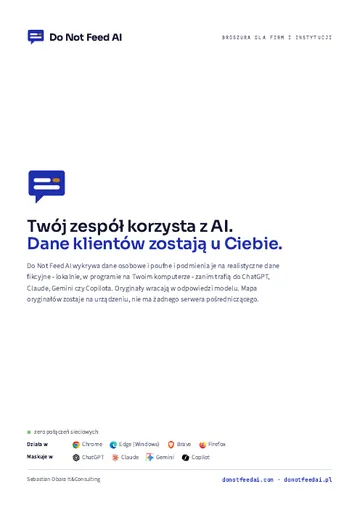 Brochure for companies and institutionsCapabilities, security, rollout and licensing in 7 pages. Handy to pass to your team or IT department. In Polish.PDF · 7 pages · 0.8 MBDownload the brochure
We prepare company offers for the number of seats: choose "Question about deployment in a company" in the form. Details: what a license covers and how to renew it.
Security
Concrete mechanisms, not promises.
The extension and the program work locally, without sending any data to the vendor, apart from an optional update check that happens only when you click. We collect no information about users or how the product is used. There is no account to create, and the license is verified without an internet connection.
- The map of originals stays with youThe replacement map is in the program's memory on your computer, separately for each chat tab, and it disappears when the tab is closed. Neither the chat page nor another extension can read it.
- Chat files are never written to diskA file from the chat is masked in memory. The program saves no working copy, so a crash does not leave the original in a temporary folder.
- An audit log without contentThe local log holds numbers and codes (how much data of which kind was masked, why a file was stopped), not messages, values or file names. It is protected against unnoticed changes, kept for 180 days and never sent anywhere.
- Signed installersWindows: a certificate issued by Microsoft. macOS: Apple Developer ID with notarization. You can check the publisher yourself.
Detection is rule-based and can miss something. It is a technical measure that supports GDPR and NIS 2 compliance, not compliance in itself.
Security details and the legal backgroundFAQ
The questions we hear most often.
Is anything sent to the vendor?
No. Do Not Feed AI works locally. It does not send data to the vendor, collect statistics or track user activity. It needs no account and no server connection to verify the license. We only receive what you send us yourself: a message from the form or an e-mail. The only connection the extension makes to our website is the "check for updates" button in the extension panel, and only after you click it: it then fetches the updates.json file (with no version number or identifiers), and the extension checks nothing by itself in the background.
Will the extension catch everything?
We don't promise that. Detection is based on rules and checksums, so an unusual format, a typo or data in an unexpected place can be missed. The AI receives replacements for what the program detected, and the rest of the text goes as it is. That is why there is a preview before sending: it shows the list of detected values and the exact text the AI will receive, so you can fix it if needed or add a missing name as a custom phrase.
Is this anonymization?
No, it is pseudonymization (reversible PII masking). Anonymization is irreversible, while the program has to restore the originals in the chat reply, so it keeps the replacement map on your computer. Pseudonymized data is still personal data under the GDPR: the tool reduces the data sent to the chat, but it does not remove the controller's obligations and does not replace your company's rules for using AI. Details: security and the law.
Do I have to install the program?
Yes. All the detection, replacements, restoring replies and the license live in the program on your computer; the extension only passes text and files to it. Without the program the extension does not mask data: the red icon in the chat asks you to install it, and before sending a message it asks whether to send it without masking. On Windows one installer sets up the program and the extension at once.
Can the chat page see what I type before I send it?
The extension replaces data at the moment of sending. The field you type in belongs to the chat page, though, so the page has technical access to it before you press Enter, for example for suggestions or saving drafts. Very sensitive data is best prepared beforehand, pasted ready and sent right away, rather than typed at length in the chat field.
What happens when the license expires?
The extension warns you in advance: a badge on the icon, a notice in the panel, and near the end also an amber ring around the chat icon. After the expiry date you still have 14 days of grace period. After that protection is off: the extension does not change messages or files, and the red icon in the chat says so plainly. Replies in open tabs still come back with the originals. Details: what works after expiry and how to renew a license.
How do I deploy it in a company?
The extension is in the Chrome Web Store, so in Chrome you can deploy it with the ExtensionInstallForcelist policy and the store ID; in Edge and on networks that block the store, use the manual install from our package. The program goes out via MDM or a silent per-user installer (Windows: /VERYSILENT), without administrator rights. On Windows there is also an MSI installer for IT departments (Group Policy, Intune, SCCM; per-computer or per-user install). MDM can place the donotfeedai.lic license file in the data folder, so users do nothing, and the company dictionary from the license is added to the custom phrases on every workstation.
Contact
Write to us.
Tell us how we can help.
The form needs JavaScript. Write to [email protected].
Prefer to write yourself?
Write to the address below. The form has the same effect, but e-mail also works when the form cannot be sent.
Who is behind it
Sebastian Obara It&Consulting - publisher of the digitally signed Do Not Feed AI installers and controller of the personal data submitted through this form.
The product is created and developed by Sebastian Obara It&Consulting, the founder of Do Not Feed AI.
Do Not Feed AI on LinkedIn